> ## Documentation Index
> Fetch the complete documentation index at: https://skelementorcss.com/llms.txt
> Use this file to discover all available pages before exploring further.
# Variables
> How Elementor Variables act as shared design tokens and how they work alongside Skelementor utilities.
## Overview
In Elementor, Variables are shared design values you can reuse across a site instead of repeating the same raw value everywhere. They work like design tokens for colors, typography, and sizes.
## Why variables help
* They keep repeated values consistent across pages and components.
* They make global updates easier when a brand value changes.
* They keep custom CSS cleaner because shared values come from tokens instead of scattered literals.
* They help Elementor styling decisions and Skelementor utilities stay aligned.
## In Elementor
### 1. Open the variable picker
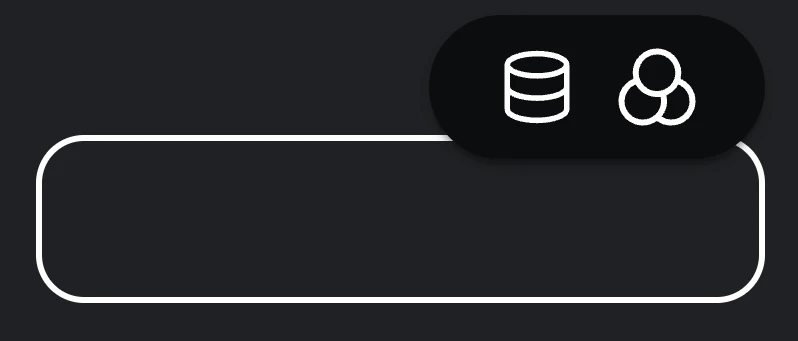 Click the **variable icon** in a supported control to open Elementor's variables popup window.
### 2. Use the variables popup window
Click the **variable icon** in a supported control to open Elementor's variables popup window.
### 2. Use the variables popup window
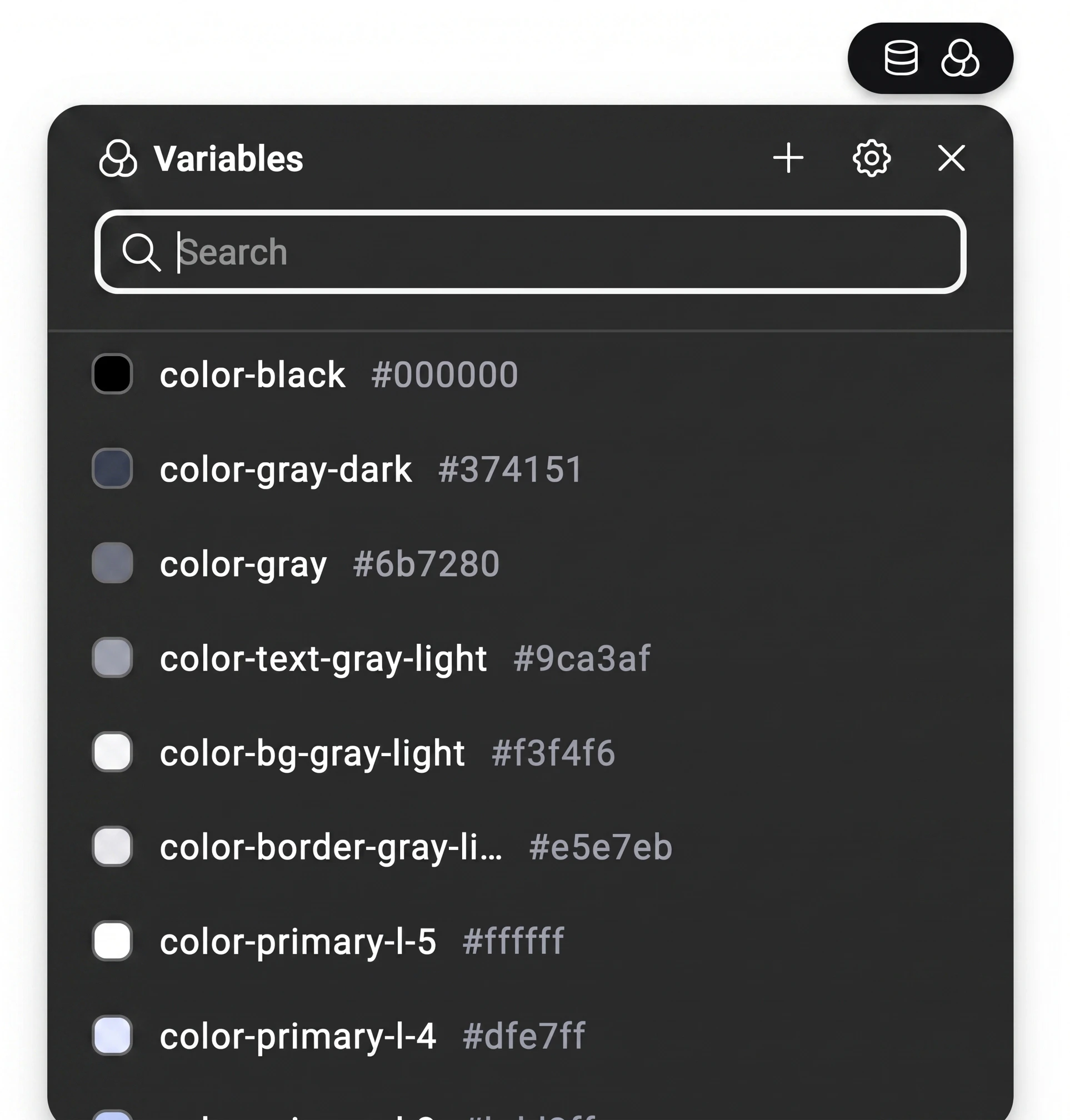 This popup is the variable list Elementor shows for that field. It lets you:
* search available variables
* pick an existing variable for the current control
* create a new variable with the `+` button
* open the **Variables Manager** from the settings cog
Skelementor-imported variables show up here too, so this is where the imported token set becomes usable inside the editor.
### 3. Manage variables centrally
This popup is the variable list Elementor shows for that field. It lets you:
* search available variables
* pick an existing variable for the current control
* create a new variable with the `+` button
* open the **Variables Manager** from the settings cog
Skelementor-imported variables show up here too, so this is where the imported token set becomes usable inside the editor.
### 3. Manage variables centrally
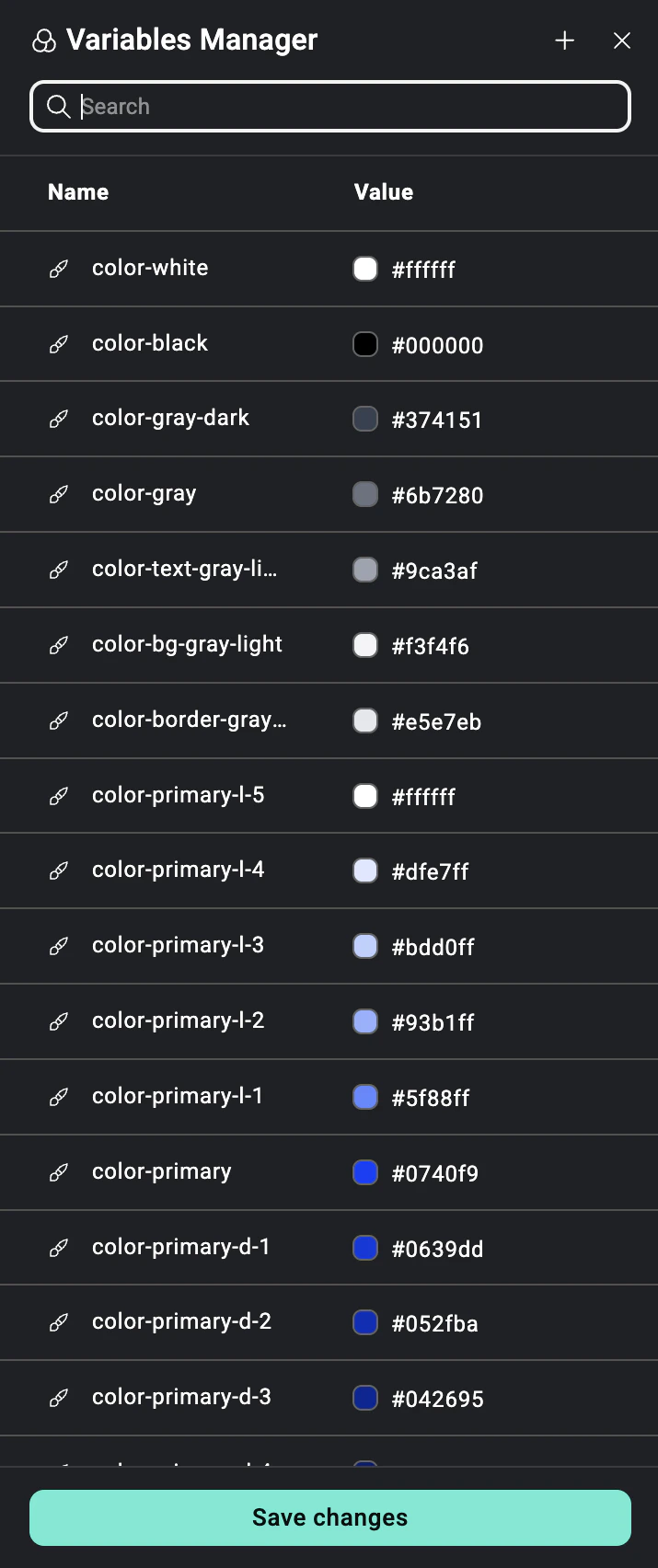 The **Variables Manager** is Elementor's central panel for managing variables. Based on Elementor's current docs, this is where you can:
* search variables
* create new color, font, or size variables
* edit existing variable values
* delete variables you no longer need
* save changes and update variable-driven styling across the site
## With Skelementor
* **Utilities** apply layout and styling behavior.
* **Variables** provide the reusable values behind those decisions.
* Together, they keep classes expressive while centralizing the values that matter.
Use a **variable** when the value itself should be reusable across many places. Use a **class** when you want to apply a styling pattern or behavior to an element.
## Related
`var(--border-*)` and the border scale
Semantic palette and utility naming
The **Variables Manager** is Elementor's central panel for managing variables. Based on Elementor's current docs, this is where you can:
* search variables
* create new color, font, or size variables
* edit existing variable values
* delete variables you no longer need
* save changes and update variable-driven styling across the site
## With Skelementor
* **Utilities** apply layout and styling behavior.
* **Variables** provide the reusable values behind those decisions.
* Together, they keep classes expressive while centralizing the values that matter.
Use a **variable** when the value itself should be reusable across many places. Use a **class** when you want to apply a styling pattern or behavior to an element.
## Related
`var(--border-*)` and the border scale
Semantic palette and utility naming